How to Make a Photo Dance with AI

Open AIDanceVideo, sign in with Google, add one authorized photo, choose a mode and generate. Then preview and download the result.

The current dance is Dime Dime Baby. Its reference controls the moves, banquet setting and camera sequence; your photo provides the lead dancer’s appearance.

Guide updated: · AIDanceVideo

Before you start

  • 1 photo · JPG / PNG · up to 10 MB (10,000,000 bytes).
  • Each side must be 300–5760 pixels. Width ÷ height must be greater than 0.4 and less than 2.5.
  • A Google account, permission to use the photo and the pictured person’s likeness, and enough credits for the selected mode.

A Free account does not include generation credits. Generating a video requires enough credits for the selected mode.

Uploads and results are not automatically published. Necessary media is processed by third-party services. Read the privacy and deletion rules before choosing a photo.

How many credits does a video use?

A Free account does not include generation credits. Generating a video requires enough credits for the selected mode.

Current dance: Dime Dime Baby. Both modes use this dance.

Fast
50 credits per video
Premium
120 credits per video

Both modes target 15 seconds · 9:16 · 720p. Silent MP4; no music included. Actual dimensions and duration can vary.

Google sign-in is required. Review the cost before submitting a video.

How long are videos saved?

  • Free: up to 60 saved creations · 7 days.
  • Pro: up to 600 saved creations · 30 days.
  • Ultra: up to 1,000 saved creations · 90 days.

Creation expiry is calculated from task acceptance. Plan changes can update expiry, and exceeding your creation limit can remove older creations. Download videos you want to keep.

Credit Pack credits last 365 days. A pack is a one-time purchase and does not change your plan or storage benefits.

01

Prepare a clear photo

Choose a photo you have permission to process. For a clearer identity cue, use one visible person with a face in focus and little obstruction. A portrait or half-body photo can work, but the model must invent clothing and body details outside the crop.

A blurred image, covered face or group photo can make the intended lead less clear. Crop a group photo to the intended person if you have permission. These are quality suggestions, not additional face-detection rejection rules.

Inspect the input photos and limitations in our examples
02

Sign in, then add your photo

Open the generator and use Continue with Google in navigation. After returning, choose your JPG or PNG in Add one photo, or drag it onto the upload area. If a sign-in or account change cleared the selection, select the photo again.

Check the ownership and permission box only if you have the necessary rights. Selecting a photo prepares it locally; generation sends the required media for processing when you submit.

The preview beside the editor is a template preview. It is a dance demonstration, not a result generated from your selected photo.

03

Choose a mode and review the cost

In Generation mode, choose Fast or Premium and check the credits displayed there and on Generate Video. Both modes use the same dance and target format. Their names do not guarantee a completion time or a particular quality.

If your balance is insufficient, review plans and Credit Packs. Checkout availability is confirmed when you choose a purchase. Return to the generator and recheck the selected mode and cost before submitting.

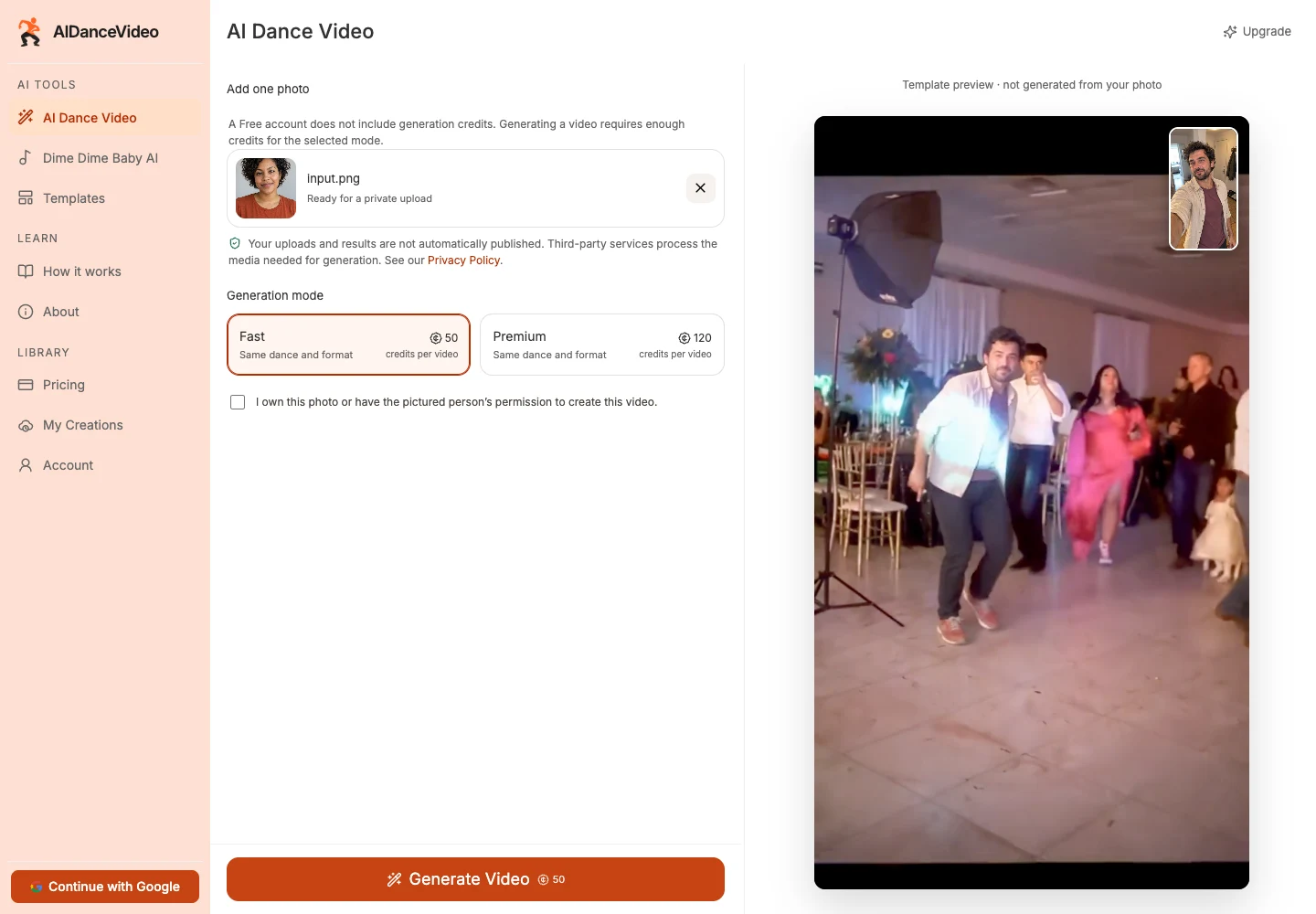
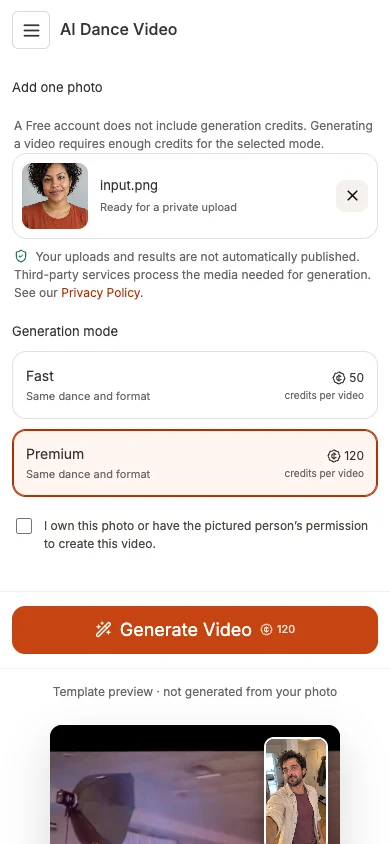
The current controls, on desktop and phone

Both views show the editor before submission, with an AI-generated demo photo selected locally. The template preview is not a personal result. Prices in screenshots reflect the review date; confirm the current values above and in the generator.

Desktop AIDanceVideo generator before submission, with a photo selected, Fast mode, permission checkbox and Generate Video control.
Desktop · Fast mode · interface reviewed 2026-11-04. Open the image for full-size controls.
Phone AIDanceVideo generator before submission, with a photo selected, Premium mode, permission checkbox and Generate Video control.
Phone · Premium mode · interface reviewed 2026-11-04. Open the image for full-size controls.
04

Generate and follow the task

With the photo, permission and credits ready, select Generate Video once. The interface shows upload and submission progress, then a task under Recent Tasks. Watch for Queued, Creating video, Finalizing and Completed.

Queueing does not mean the task has failed. There is no guaranteed completion time. If the submission outcome is uncertain, use Confirm original request when offered to recover it, rather than starting another copy.

Use Cancel task only when the interface offers it. Cancellation is limited to before provider submission. See refund rules for the difference between returned task credits and a payment refund.

05

Preview the finished video and download it

When the task succeeds, select Preview in Recent Tasks to watch it, then Download to save the MP4. You can also open My Creations, preview a saved item and use its download action.

Inspect the face, clothing, hands and scene before sharing. Dimensions and duration can vary from the target format; examples show measured values. A technically successful result may still have visible changes or artifacts.

The current output is silent. After downloading, you can add music you have permission to use in your own editor and upload the vertical MP4 to TikTok, Reels or Shorts yourself. AIDanceVideo does not publish it for you or supply those platforms’ music licenses.

06

Keep a local copy, or delete your saved creation

Download anything you want to keep before its storage period ends. Check the plan limits in My Creations and Pricing. The storage summary above comes from the current account catalog.

Recent Tasks is a browser history, not permanent storage. Its records can disappear independently of saved creations. To remove a saved video, use the Delete creation action in My Creations and confirm Delete permanently.

Deletion queues private-storage cleanup; it is not an instant deletion guarantee for every provider copy. Files you have downloaded are not removed from your device. Account deletion is a separate action in Account.

When something gets in the way

My photo was rejected

Check the supported file type, maximum bytes, dimensions and width-to-height ratio above. A renamed file is not a conversion. If the file meets these limits but fails, read the visible error and contact Support without sending a private media URL.

I have an account but cannot generate for free

A Free account does not include generation credits. Generating a video requires enough credits for the selected mode. Review your balance and the selected mode’s current cost.

The task is queued, failed, or its status is uncertain

Use the status and recovery actions shown for the existing task. Do not keep submitting duplicates. Eligible failed, rejected or timed-out tasks return the credits charged. Cancellation is available only before provider submission. A credit return is separate from a payment refund; a technically successful result is not refundable just because you dislike its style. If returned credits have not appeared, include the relevant task details and visible error when contacting Support.

The video is silent or looks different from my photo

Silent output is expected for the current template. Its reference controls the moves, scene, background people and camera. Face, body, hand and clothing details can change. Review the complete examples and their limitations. We have not verified that every Fast and Premium result is watermark-free. Preview your result before sharing it.

A private download link no longer works

While the creation is still available, return to Recent Tasks or My Creations and use Download again to request a fresh link. An expired or deleted creation may no longer be available. Download files you want to keep.